
Checking PDFs
PDFs are a common accessibility gap and a frequent source of complaints. Zylyn checks them against PDF/UA-1, the accessibility standard for PDF documents.
Why this matters#
Most site audits stop at HTML. But if your contracts, forms, menus, reports, or brochures are PDFs, a screen reader user may be locked out of the most important content you publish — and document accessibility is regularly cited in legal complaints and procurement reviews.
How to check one#
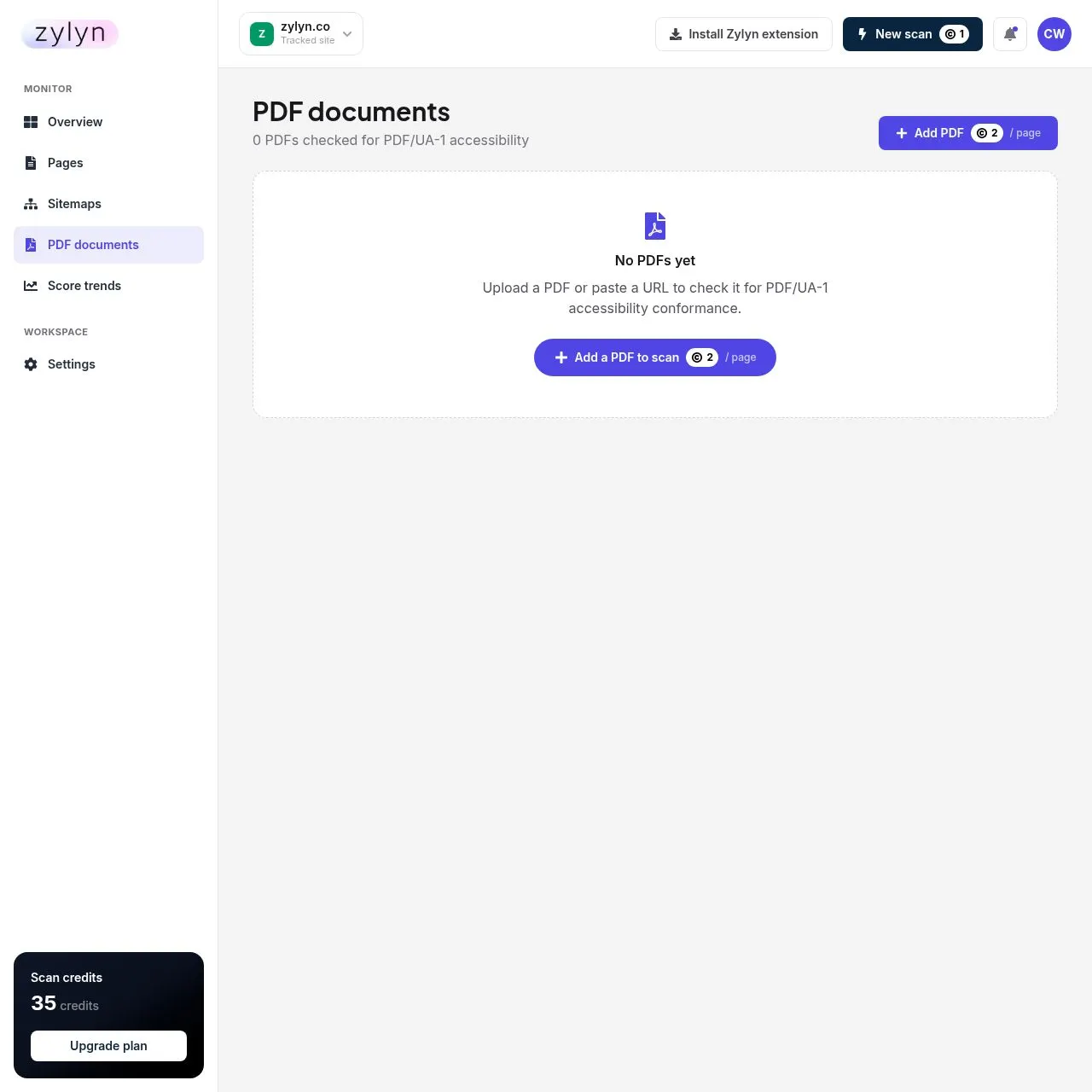
Open PDF documents in the sidebar, then Add a PDF to scan. You can upload a file or paste a URL.
Cost: 2 credits per page. Note per page of the document, not per document — a 20-page report costs 20 credits. Check your balance before submitting a long one.
The five stages of a document check#
| # | Stage | What happens |
|---|---|---|
| 1 | PDF submitted | Uploaded individually, or pulled from a monitored library |
| 2 | Accessibility analysis | Structure, language, metadata, contrast and alternative text checked |
| 3 | Tag validation | Semantic tags verified for headings, lists, tables and form fields |
| 4 | Reading order | Logical sequence confirmed against the visual layout |
| 5 | Compliance report | Findings, severity and guidance issued as a dated record |
What gets checked#
PDF/UA-1 conformance, which in practice means:
- Tags — whether the document has a proper structure tree (the PDF equivalent of headings and landmarks)
- Reading order — whether content is ordered logically for assistive technology
- Alternative text on images and figures
- Table structure — header cells properly associated with data cells
- Document language and title metadata
- Bookmarks for longer documents
The four failures that account for most of it#
| Failure | Why it breaks | Fix |
|---|---|---|
| Untagged documents | A formatted PDF with no tag tree is unreadable in any meaningful order. The most common failure in enterprise document sets. | Re-export from source with tags enabled |
| Scanned images of text | Archived forms stored as flat images carry no text layer at all | Flagged for OCR and re-issue |
| Fields without labels | Interactive PDFs where fields have no accessible name leave assistive technology users guessing | Add field names in the form editor |
| Tables without headers | Statement and pricing tables lose all meaning without row and column header associations | Mark header rows/columns in the tag tree |
The most common problem#
A PDF exported straight from Word, Canva, or InDesign without accessibility settings enabled is usually untagged, and an untagged PDF is close to unusable with a screen reader.
The fix is generally not in Zylyn — it's in your source document:
- Use real heading styles in the source, not manually enlarged bold text
- Add alt text to every image before exporting
- Export using "Save as PDF" with document structure or accessibility tags enabled, not "Print to PDF"
- For an existing PDF with no source file, remediation means retagging in Acrobat Pro or similar — that's specialist work, and Request remediation help is the right route
Practical advice#
Don't scan every PDF you have. Start with the ones that matter: anything a customer must read to transact with you — application forms, price lists, terms, menus, statements. A decorative brochure matters less than the form someone needs to complete to become your customer.