
Zylyn Documentation
Zylyn Portal — User Guide
The complete guide in one document — every chapter, in order.
Verified against the live portal · 12 September 2026 · zylyn.co/guides
Zylyn Portal — User Guide
Everything you need to run accessibility scans, read the results, and keep your site conformant.
Last verified against the live portal: 2026-09-12.
New here? Start with these three#
- Getting started — create your account, add your first site, run your first scan. About ten minutes.
- Reading your report — what Violations, Alerts, Passes and Incomplete mean, and which numbers actually matter.
- Credits and plans — what each action costs, so nothing surprises you.
Looking something up?#
Quick reference has every credit cost, every plan limit, the report buckets, severity order, AI fix statuses, and a "where do I find…" table — all on one scannable page. Bookmark that one.
Use the search box in the sidebar (or press ⌘K / Ctrl K) to jump straight to any section.
Guides#
| Guide | What it covers |
|---|---|
| Getting started | Account, login, first site, first scan |
| The dashboard | Site score, grade, trend chart, recent scans |
| Running scans | Sitewide, single page, re-audit, loose scans, scheduling |
| Reading your report | Result buckets, severity, WCAG references, affected elements |
| AI fix suggestions | How they work, the four statuses, and why you must review them |
| Exporting and sharing | PDF, CSV, email, logging defects |
| Checking PDFs | PDF/UA-1 document conformance |
| Scanning pages behind a login | The Zylyn browser extension |
| Teams and agencies | Seats, shared credits, client accounts, white-label |
| Enterprise & governance | AI prioritisation, role-based access, policy thresholds, scheduled reporting, manual audits, VPAT |
| Rollout plan | The seven stages, a realistic first quarter, and why timing drives cost |
Reference#
| Page | What it covers |
|---|---|
| Quick reference | Everything on one page — costs, plans, buckets, severities, statuses |
| Credits and plans | Every credit cost, every plan, worked examples |
| Screens and navigation | Every portal screen and what lives where |
| Troubleshooting and FAQ | Common problems and blunt answers |
| Accessibility glossary | WCAG, ADA, PDF/UA and the rest, in plain English |
What Zylyn does, in one paragraph#
Zylyn scans web pages against WCAG 2.2 — the international accessibility standard — and tells you what is broken, how serious it is, which exact element is at fault, and how to fix it. You can scan one page or a whole site, on demand or on a schedule, and track whether your score is improving over time. Automated scanning finds a meaningful share of problems but not all of them; see what scanning can and cannot find.
Two things worth knowing up front#
Everything is metered in credits. Scanning a page costs 1 credit, adding a site costs 10, and exports cost 1 each. A free account starts with 100 credits. See credits and plans before you start a large scan.
VPAT generation is not available yet. You will see "Sitewide VPAT — Soon" and a "Generate & view VPAT" button on reports. These are not live. If you need a VPAT or ACR today, contact the Zylyn team directly.
Getting started
Ten minutes from nothing to your first report.
1. Create your account#
Go to zylyn.co and click Log in in the top-right, then switch to the Register tab.
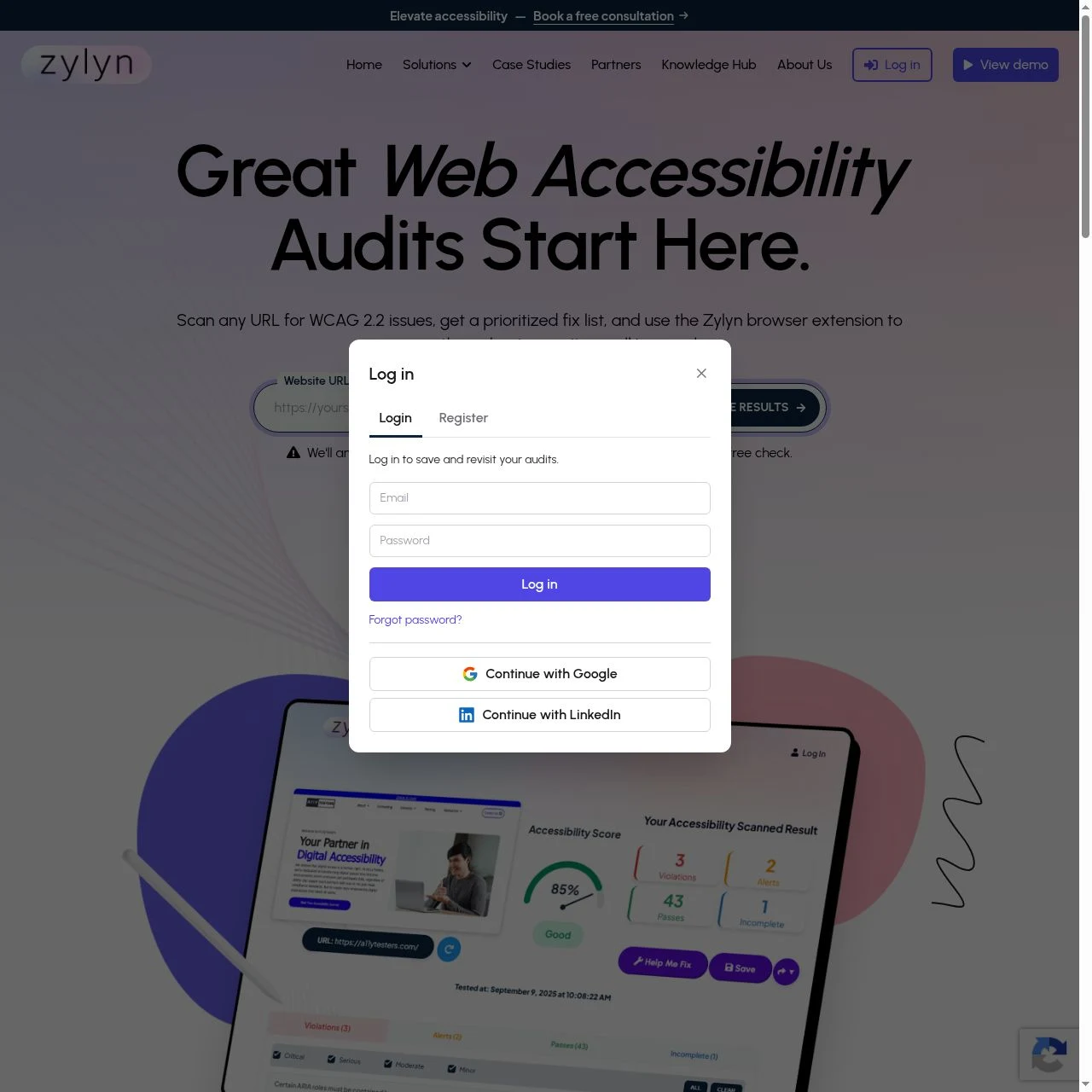
You need three things: full name, email, password. You can also use Continue with Google or Continue with LinkedIn instead.
There is no email confirmation step — you are signed in and taken straight to the portal.
Your new account starts with 100 free credits and room for one site.
2. Add your first site#
In the portal, click Add a site on the dashboard (or open the site selector in the top bar and choose Add site).
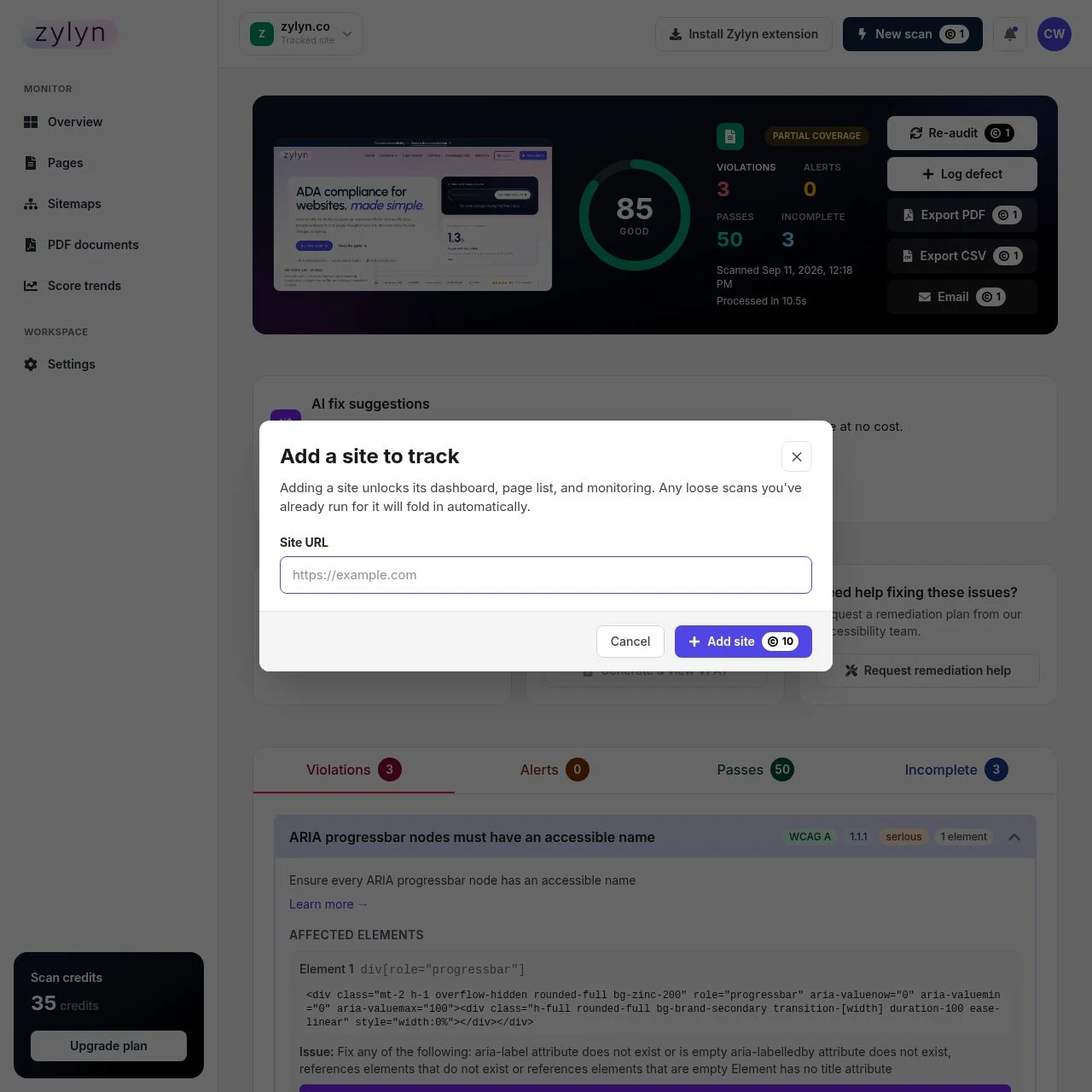
Enter the root URL, for example https://yoursite.com. You do not need to list individual pages.
Cost: 10 credits. This includes discovering your pages.
What happens next: Zylyn looks for your sitemap.xml and falls back to a shallow crawl if there isn't one, then builds a list of every page it found. You'll see the count immediately — a 51-page site takes a few seconds.
3. Run your first scan#
You have two sensible options.
Scan one page first (1 credit). Recommended. Open Pages, find your homepage, click Scan. You get a full report in about ten seconds and you've spent one credit finding out whether the output is useful to you.
Scan the whole site (1 credit per page). Open Pages and click Scan all pages. You'll get a confirmation showing exactly how many pages and credits are involved before anything is charged.
Scans run in the background. You can navigate away and come back.
4. Read the report#
Click any page in the Pages list to open its report. Start with reading your report — the short version is that Violations are real problems, Incomplete means "a human needs to check this", and the severity labels tell you what to fix first.
5. Decide what happens next#
- Fix things yourself? Use AI fix suggestions to get corrected markup per finding, then hand it to whoever maintains your site.
- Send it to a developer? Export to PDF or CSV.
- Keep it from regressing? Turn on scheduled scanning.
- Want expert help? Every report has a Request remediation help button.
Common first-run questions#
Does scanning change my website? No. Zylyn only reads your pages.
Do I need to install anything? Not for public pages. Only for pages behind a login.
Why is my score not 100? Almost no site scores 100 on a first scan. Zylyn's own site scores 92. See what a good score looks like.
The dashboard
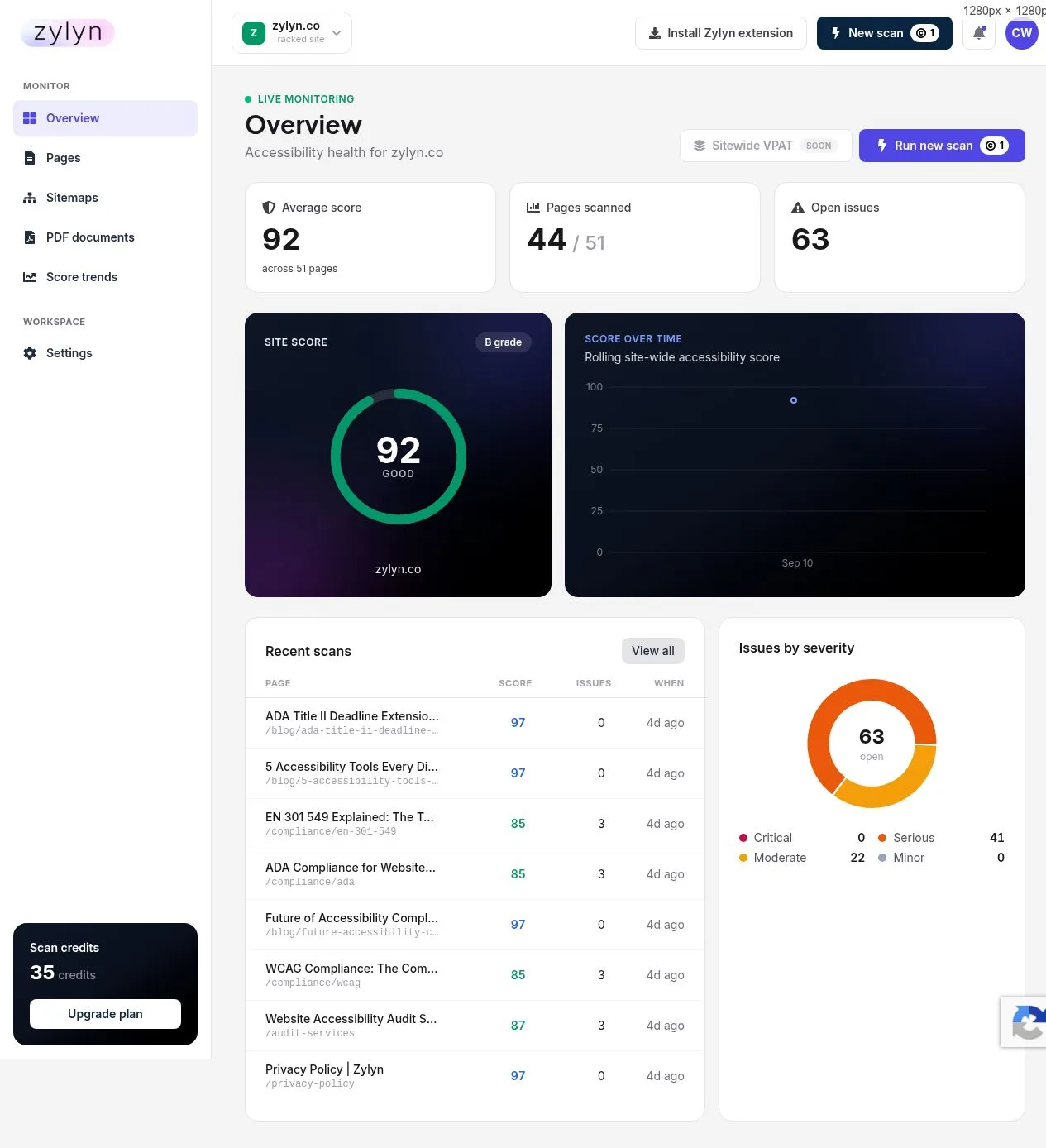
Your site's accessibility health on one screen. Open it from Overview in the left sidebar.
The four numbers at the top#
| Number | What it means |
|---|---|
| Average score | Mean score across every page that has been scanned, with the page count beside it |
| Pages scanned | How many of your discovered pages have actually been scanned — e.g. 44 / 51 |
| Open issues | Total unresolved findings across the site |
| Site score + grade | The headline 0–100 score with a letter grade and label, e.g. 92 · B grade · GOOD |
Watch the "pages scanned" ratio. If it reads 44 / 51, your average score only reflects those 44 pages. Seven pages have never been scanned and could be worse than the rest. A high score across a fraction of your site is not a clean bill of health.
What is a good score?#
Honestly: most sites land in the 70s and 80s on a first scan, and that is normal rather than alarming.
- 90–100 — Good. Remaining issues are usually best-practice items rather than WCAG failures.
- 75–89 — Typical. A handful of real problems, usually repeated across templates.
- Below 75 — Worth prioritising. Likely includes contrast or labelling failures affecting every page.
Two caveats that matter more than the number:
- The score is not a legal compliance rating. It reflects what automated testing can measure. A high score does not mean you are ADA or WCAG compliant, and a low score does not mean you are being sued tomorrow.
- The score counts best-practice rules alongside genuine WCAG failures. A page can score in the 80s while having only one or two actual WCAG violations. Read the findings, not just the number. See reading your report.
Score over time#
The trend chart plots your rolling sitewide score. It becomes useful after a few weeks of scheduled scans — with a single scan there is nothing to trend.
Use it to answer one question: is this getting better or worse? A gradual decline usually means new pages are shipping with problems the rest of the site already fixed.
Recent scans#
The most recently scanned pages, each with score, issue count, and when it ran. Click any row to open the full report. View all takes you to the complete Pages list.
Buttons in the top bar#
- Run new scan (1 credit) — scan any single URL, including one on another domain
- Site selector — switch between sites, or add one
- Install Zylyn extension — for pages behind a login
- Sitewide VPAT — SOON — not available yet
Running scans
Five ways to scan, and when to use each.
The Pages list#
Pages in the sidebar lists every page Zylyn discovered on your site, with its score, issue count, trend, and when it was last scanned.
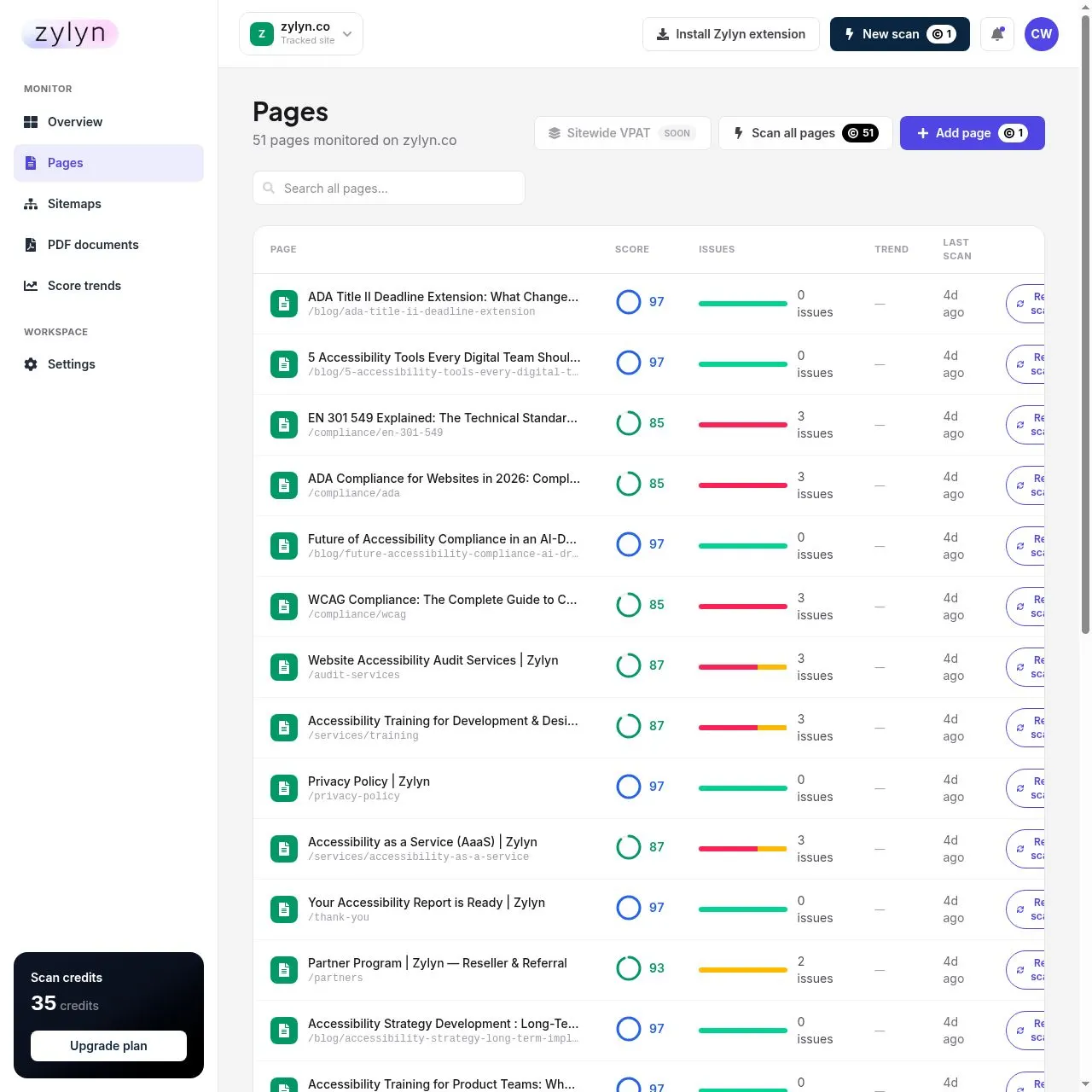
Pages that have never been scanned show — and read "Not scanned yet".
1. Scan a single page — 1 credit#
Click Scan on any row. Takes about ten seconds. Best for checking one fix or trying the product.
2. Scan the whole site — 1 credit per page#
Click Scan all pages at the top of the Pages list. You'll get a confirmation first:
Nothing is charged until you confirm. Scans run in the background — leave the page if you like.
3. Scan any URL on demand — 1 credit#
Run new scan in the top bar accepts any URL, including one on a domain you haven't added.
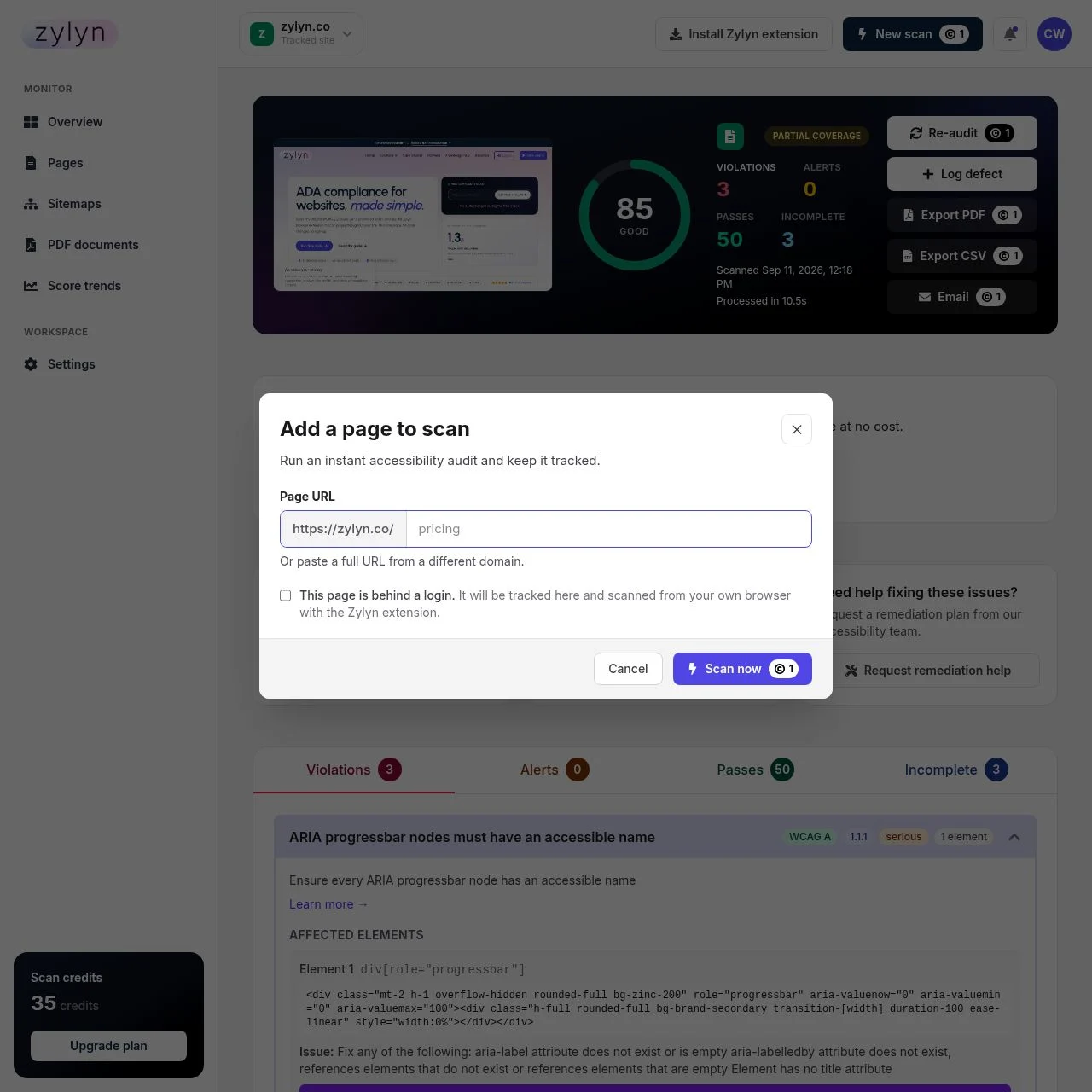
Tick This page is behind a login to route the scan through the browser extension instead.
4. Loose scans#
A scan of a URL you haven't added as a tracked site is called a loose scan and appears under Loose scans. Handy for spot-checking a page before committing a site.
When you later add that domain as a site, existing loose scans fold into it automatically.
5. Re-audit after a fix — 1 credit#
Open any report and click Re-audit. This is how you confirm a fix worked. The page keeps its history, so the trend column shows the improvement.
Schedule automatic re-scans#
Settings → Scanning. Choose Daily, Weekly, Monthly, or Manual (off) per site.
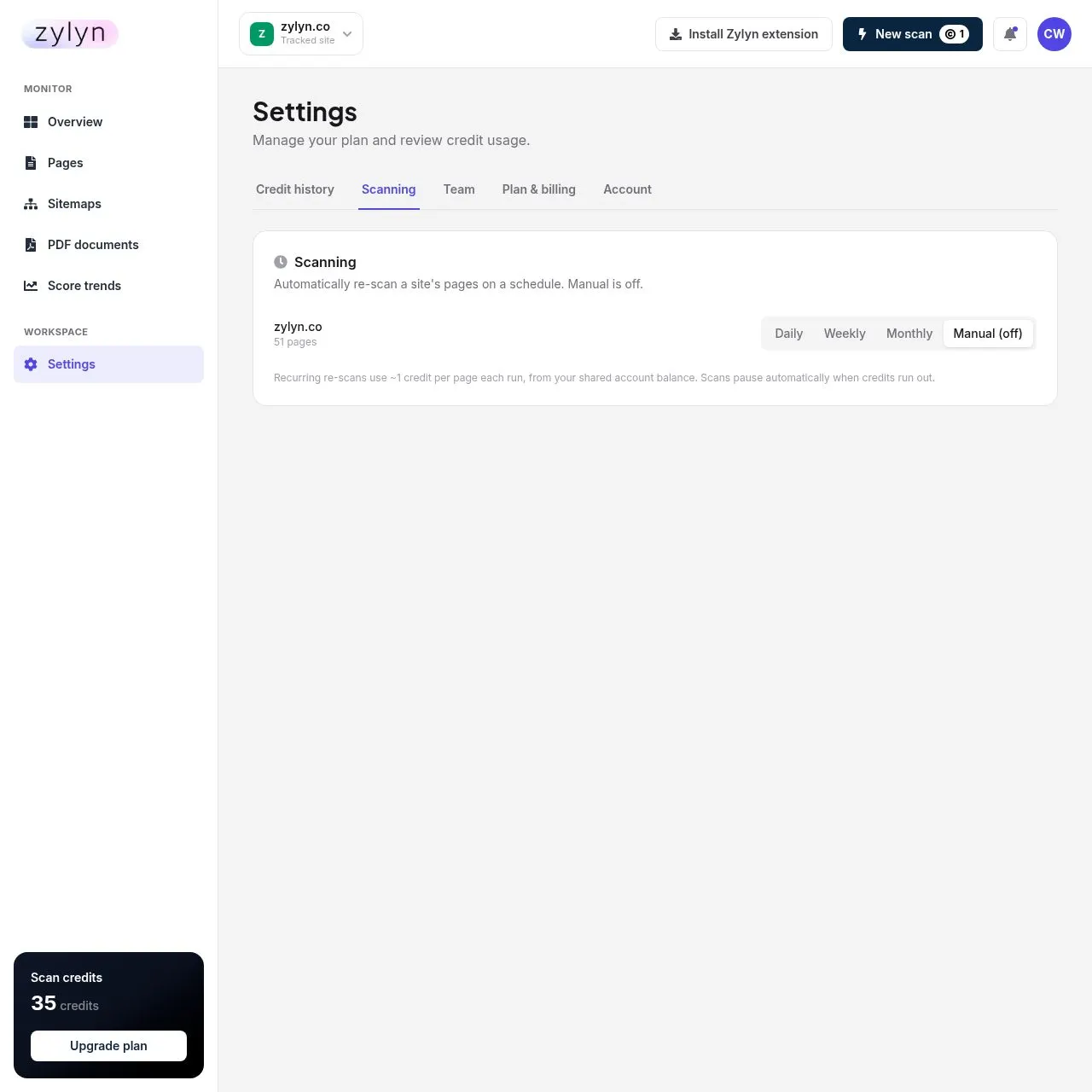
Scheduling is off by default — nothing recurring happens until you turn it on.
Cost: ~1 credit per page per run. Budget carefully:
| Site size | Weekly | Daily |
|---|---|---|
| 50 pages | ~215 credits/mo | ~1,500 credits/mo |
| 500 pages | ~2,150 credits/mo | ~15,000 credits/mo |
Weekly is the right default for most sites. Daily only makes sense if you deploy constantly.
Scans pause automatically when credits run out rather than failing silently or overbilling.
Re-discovering pages — 2 credits#
Sitemaps shows how many URLs Zylyn found and the method used.
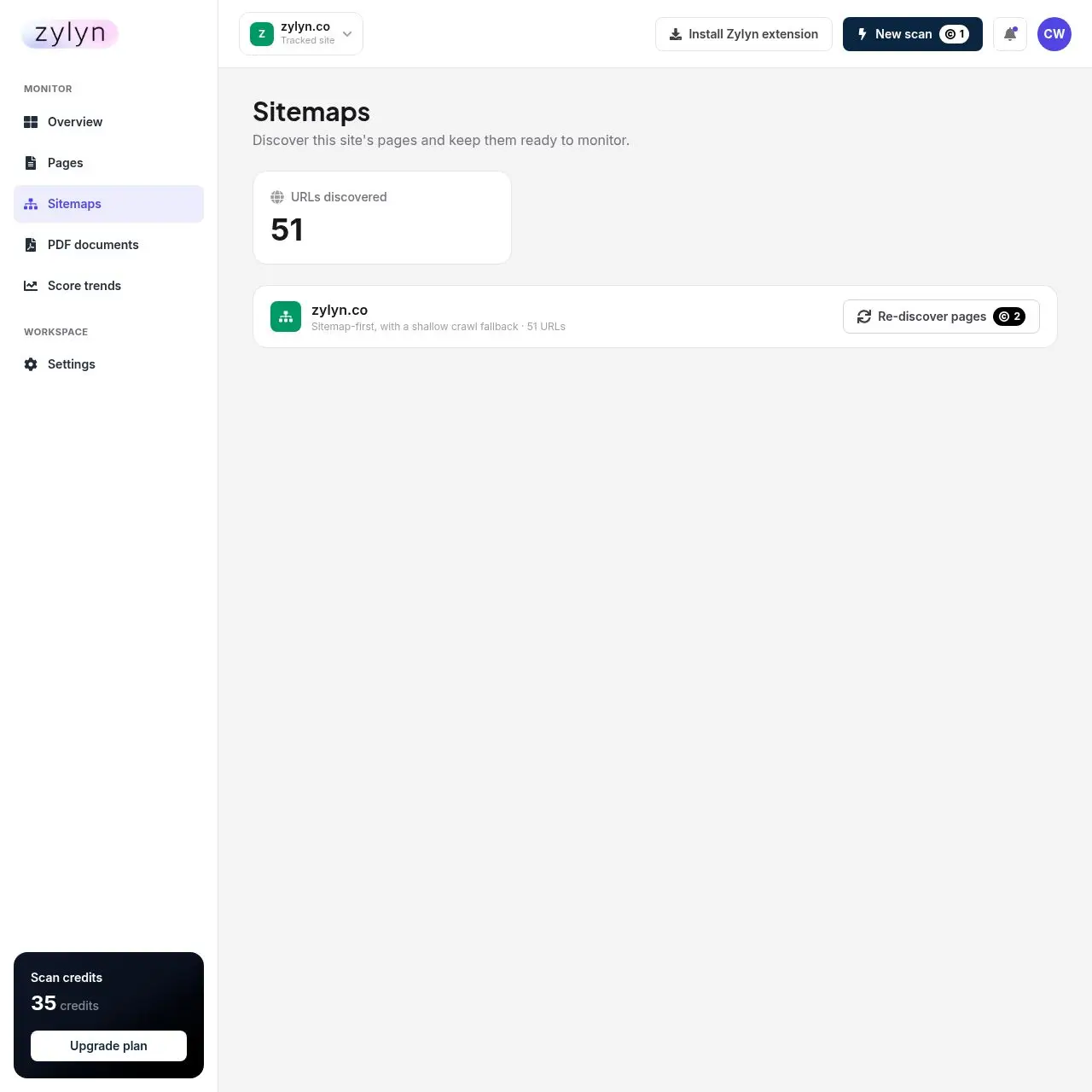
Click Re-discover pages after launching new sections so they enter monitoring. New pages are not picked up automatically between discoveries.
If a scan fails#
Failed scans are refunded automatically — you'll see a "Refund — Website scan" line in credit history. You don't need to ask.
Pages that are login-gated, JavaScript-only shells, or blocked by robots rules are the usual failures. Use the extension for the first case.
Reading your report
The most important page in this guide. Click any page in Pages to open its report.
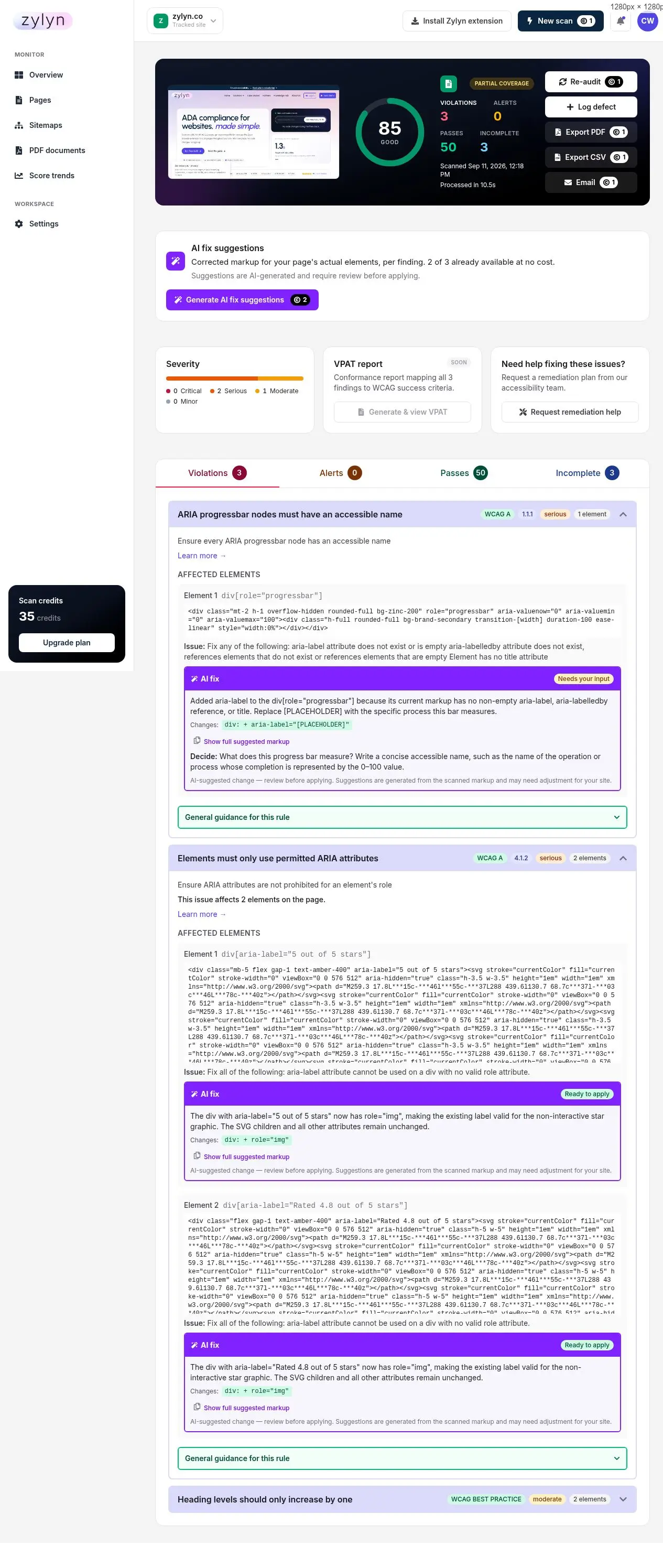
The four result buckets#
| Bucket | What it means | Do you act? |
|---|---|---|
| Violations | Definite problems. Zylyn is confident these break accessibility. | Yes — this is your work list. |
| Alerts | Things that are probably fine but worth a look. | Review if you have time |
| Passes | Checks your page passed. | No — this is reassurance |
| Incomplete | Zylyn could not decide. Needs human judgement. | Yes — have someone look |
Do not ignore Incomplete. It does not mean "fine". It means the scanner hit something it cannot evaluate — text over a background image, a control whose purpose depends on context. These are often real problems that automation cannot confirm.
You may also see Partial coverage near the score. That flags that some content — typically third-party iframes — could not be scanned, and the report is for what Zylyn could reach.
Severity: what to fix first#
Four levels, and they are a genuine priority order:
| Severity | Meaning | Priority |
|---|---|---|
| Critical | Blocks people from using the page at all | Fix now |
| Serious | Major barrier; many users affected | Fix this sprint |
| Moderate | Real but works around-able | Backlog |
| Minor | Polish | When convenient |
Fix Critical and Serious first. They are both the largest real-world barriers and the findings that appear in legal complaints.
WCAG failures versus best practice#
This trips people up, so it's worth being precise.
Each finding is tagged either with a WCAG level and criterion (e.g. WCAG AA · 1.4.3) or with WCAG BEST PRACTICE.
- A tagged criterion = a failure against the actual standard. This is what conformance and legal exposure are judged on.
- BEST PRACTICE = a recommendation that improves accessibility but is not a WCAG failure. Examples: "Document should have one main landmark", "All page content should be contained by landmarks", "The skip-link target should exist and be focusable".
Both are worth fixing. But if someone asks "are we WCAG conformant?", only the tagged criteria answer that question — and a page can look alarming while having only one or two real failures. When reporting to a client or a board, count the WCAG-tagged findings, not the raw total.
Per-finding detail#
Expand any finding and you get:
- Plain-English explanation of the rule, plus a Learn more link to the full documentation
- Affected elements, each with its CSS selector and the actual markup from your page
- The precise problem. Contrast findings include the measured ratio, both colours, font size and weight, and the required ratio — for example:
That is enough for a developer to fix without guessing. Hand them the selector and the numbers.
Where a finding affects many elements, the report shows the first five and tells you the total.
What automated scanning cannot find#
Be clear-eyed about this, because it determines how much assurance a clean report gives you.
Automated tools reliably cover roughly 20–40% of WCAG success criteria. They are excellent at mechanical checks — missing alt text, contrast ratios, unlabelled form fields, heading structure. They cannot assess:
- Whether alt text is meaningful (
alt="image123"passes; it helps nobody) - Whether keyboard focus order makes logical sense
- Whether a screen reader announces a custom control usefully
- Whether an error message actually tells the user how to recover
- Whether your content is understandable
A 100/100 score does not mean your site is accessible. It means the machine-checkable part is clean. For conformance you can defend, you need manual testing with assistive technology — use Request remediation help on any report.
Actions available on a report#
| Action | Cost | What it does |
|---|---|---|
| Re-audit | 1 credit | Re-scan to verify a fix |
| Log defect | Free | Track the finding as a defect |
| Export PDF | 1 credit | Formatted report — see exporting |
| Export CSV | 1 credit | Spreadsheet of findings |
| 1 credit | Send the report | |
| Generate AI fix suggestions | 2 credits per finding | See AI fix suggestions |
| Generate & view VPAT | — | Not available yet ("Soon") |
| Request remediation help | Free | Contact the Zylyn team |
AI fix suggestions
Zylyn can generate corrected markup for each finding, based on your page's actual elements rather than generic advice.
How to generate them#
Open a report and click Generate AI fix suggestions.
Cost: 2 credits per finding. Suggestions are cached, so findings that have been generated before are free — the button tells you before you click, e.g. "2 of 3 already available at no cost", and charges only for the rest.
Generation takes under a minute. Suggestions appear inside each finding as they complete.
The four statuses#
This is the part to understand, because the status tells you how much you can trust the suggestion.
| Status | What it means | What to do |
|---|---|---|
| Applied / ready | A safe, complete fix was produced and self-validated | Review, then apply |
| Needs your input | Complete except for a [PLACEHOLDER] | Replace the placeholder with your own wording |
| Dev required | No safe automatic patch exists; options are listed | Have a developer decide |
| Decide | Automated validation could not confirm the change | Review manually before applying |
A worked example of Needs your input — an ARIA progressbar with no accessible name:
Zylyn cannot know what your progress bar measures. It writes the correct attribute and leaves the label to you. Do not ship the placeholder.
A worked example of Dev required — a contrast failure:
The suggestion is specific and correct, but the colour is a shared design token — changing it affects every element using it. That is a decision, not a patch.
Always review before applying#
The portal says this in three places, and it means it. These are AI-generated suggestions, not verified patches. Specifically:
- A suggestion can be technically valid but wrong for your design (the contrast example above)
- Adding an
aria-labelwith the wrong wording is worse than no label — it misleads screen reader users confidently - Changing shared tokens or components has effects beyond the page you scanned
Treat a suggestion as a well-informed pull request from a contributor who has only seen one page of your site. Read it, understand it, then apply it.
What they're good for#
- Turning findings into something actionable for someone who isn't an accessibility specialist
- Speed on mechanical fixes — alt text, labels, ARIA attributes, heading levels
- Teaching. Reading the suggestions is a fast way to learn why something failed
What they're not good for#
- Structural problems (landmarks, focus order, page architecture)
- Anything touching shared components or design tokens
- Replacing manual testing — a fix that satisfies the scanner can still be unusable with a screen reader
Exporting and sharing
Getting findings out of the portal and to whoever will fix them.
Your options#
| Action | Cost | Best for |
|---|---|---|
| Export PDF | 1 credit | Clients, managers, anyone who needs a document |
| Export CSV | 1 credit | Developers; importing into Jira, Linear, or a spreadsheet |
| 1 credit | Sending straight to a colleague | |
| Log defect | Free | Tracking a finding inside Zylyn |
All four are on every report.
Which format to use#
CSV for anyone who will fix things. One row per finding with the WCAG criterion, severity, selector, and description — paste it into your tracker and assign rows. This is the highest-leverage export.
PDF for anyone who will read rather than act. Formatted and readable, good for a client update or a compliance file. Bad as a work list: nobody wants to copy selectors out of a PDF.
Sharing with a client#
The honest framing matters here. If you hand a client a raw report, lead with:
- Which findings are actual WCAG failures, separated from best-practice items — see WCAG failures versus best practice. Reporting a total that mixes both overstates the problem.
- What the score does and doesn't mean. It is not a compliance certification.
- What still needs manual testing. Automated scanning covers 20–40% of WCAG criteria.
A client who is told "you have 23 issues and score 74%" panics. A client who is told "two real WCAG failures, both one-line template fixes, plus some structural improvements worth doing" acts.
Logging defects#
Log defect records a finding as tracked work inside Zylyn, at no credit cost. Useful when you want history in one place rather than exporting into an external tracker.
A note on privacy#
Reports contain fragments of your page markup, since that's what makes findings actionable. For public pages this is content anyone can view. For pages scanned via the browser extension, snippets can come from private screens — those reports are never given a public link and email addresses and long digit sequences are automatically redacted. Reports are still visible to everyone on your account, and to your managing agency if you have one.
Checking PDFs
PDFs are a common accessibility gap and a frequent source of complaints. Zylyn checks them against PDF/UA-1, the accessibility standard for PDF documents.
Why this matters#
Most site audits stop at HTML. But if your contracts, forms, menus, reports, or brochures are PDFs, a screen reader user may be locked out of the most important content you publish — and document accessibility is regularly cited in legal complaints and procurement reviews.
How to check one#
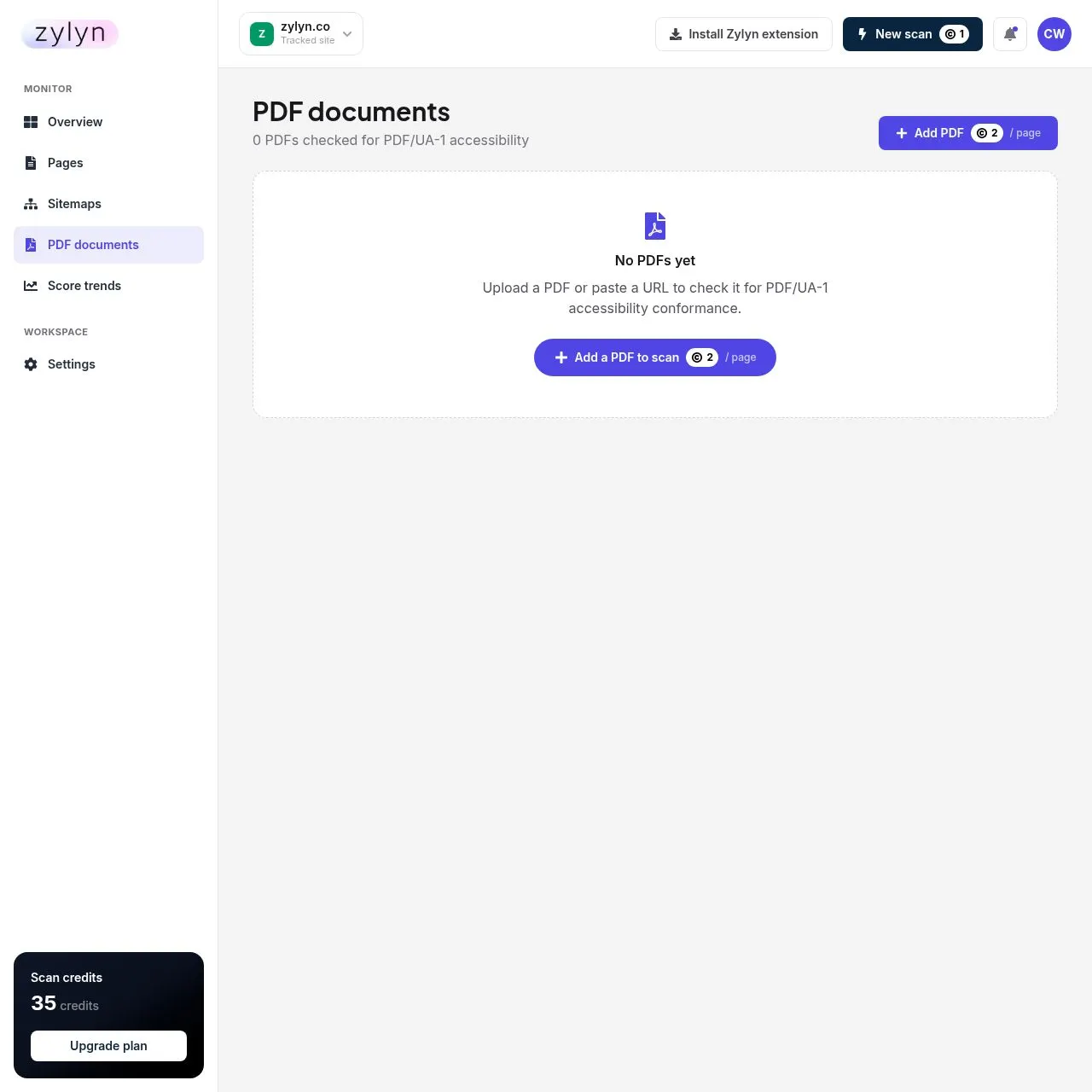
Open PDF documents in the sidebar, then Add a PDF to scan. You can upload a file or paste a URL.
Cost: 2 credits per page. Note per page of the document, not per document — a 20-page report costs 20 credits. Check your balance before submitting a long one.
The five stages of a document check#
| # | Stage | What happens |
|---|---|---|
| 1 | PDF submitted | Uploaded individually, or pulled from a monitored library |
| 2 | Accessibility analysis | Structure, language, metadata, contrast and alternative text checked |
| 3 | Tag validation | Semantic tags verified for headings, lists, tables and form fields |
| 4 | Reading order | Logical sequence confirmed against the visual layout |
| 5 | Compliance report | Findings, severity and guidance issued as a dated record |
What gets checked#
PDF/UA-1 conformance, which in practice means:
- Tags — whether the document has a proper structure tree (the PDF equivalent of headings and landmarks)
- Reading order — whether content is ordered logically for assistive technology
- Alternative text on images and figures
- Table structure — header cells properly associated with data cells
- Document language and title metadata
- Bookmarks for longer documents
The four failures that account for most of it#
| Failure | Why it breaks | Fix |
|---|---|---|
| Untagged documents | A formatted PDF with no tag tree is unreadable in any meaningful order. The most common failure in enterprise document sets. | Re-export from source with tags enabled |
| Scanned images of text | Archived forms stored as flat images carry no text layer at all | Flagged for OCR and re-issue |
| Fields without labels | Interactive PDFs where fields have no accessible name leave assistive technology users guessing | Add field names in the form editor |
| Tables without headers | Statement and pricing tables lose all meaning without row and column header associations | Mark header rows/columns in the tag tree |
The most common problem#
A PDF exported straight from Word, Canva, or InDesign without accessibility settings enabled is usually untagged, and an untagged PDF is close to unusable with a screen reader.
The fix is generally not in Zylyn — it's in your source document:
- Use real heading styles in the source, not manually enlarged bold text
- Add alt text to every image before exporting
- Export using "Save as PDF" with document structure or accessibility tags enabled, not "Print to PDF"
- For an existing PDF with no source file, remediation means retagging in Acrobat Pro or similar — that's specialist work, and Request remediation help is the right route
Practical advice#
Don't scan every PDF you have. Start with the ones that matter: anything a customer must read to transact with you — application forms, price lists, terms, menus, statements. A decorative brochure matters less than the form someone needs to complete to become your customer.
Scanning pages behind a login
Zylyn's servers cannot reach pages that require a login — dashboards, account settings, checkout steps, member areas. The Zylyn browser extension solves this by running the scan inside your own browser, in a tab you're already signed in to.
This matters because the highest-value accessibility defects usually live behind the login. Marketing pages get designed carefully; account settings screens rarely do.
Installing it#
Click Install Zylyn extension in the portal's top bar, or find Zylyn Accessibility Scanner in the Chrome Web Store. Chrome only at present — no Firefox or Edge build.
Using it#
- Log in to the site you want to test, as you normally would
- Navigate to the page you want to scan
- Click the Zylyn icon, or right-click and choose Scan this page with Zylyn
- Pick which Zylyn account the result should be saved to
- Results upload to your portal and appear alongyour other reports
You can also tick This page is behind a login in the Run new scan dialog to register the page for extension scanning.
What it collects#
Worth knowing, since it runs on pages containing your data:
It collects, only when you click scan: the page URL and title, your browser's viewport size, the scan findings, short truncated HTML snippets (~150 characters) of failing elements, your Zylyn account and user ID, and the request's IP and user agent.
It does not collect: your browsing history, any page you didn't explicitly scan, cookies, passwords, authentication tokens, session data, text you typed into forms, screenshots, keystrokes, mouse movement, or in-extension analytics.
Your credentials never leave your browser. The extension reads the rendered page, not your session.
Privacy on private pages#
Because findings include markup, a snippet can contain content only you can see. Zylyn applies three safeguards:
- Automatic redaction of email addresses and long digit sequences (account or card numbers) before storage. This is described as an automated safeguard, not a guarantee — it cannot catch every possible form of personal data.
- Extension scans are never made public. Unlike public-page scans they get no shareable link, no screenshot, and are not sent to Zylyn's CRM.
- Same-site frames only. Content embedded from other domains is counted but not scanned, and the report tells you when coverage was partial.
The extension requests access to the Zylyn API only — not to the sites you scan — and the accessibility engine is bundled at a pinned version, so it never downloads or executes remote code.
Scan responsibly#
- Only scan systems you're authorised to access
- Prefer a dedicated test account over your real one wherever possible, especially on anything containing customer data
- Remember that scan reports are visible to everyone on your Zylyn account, and to your managing agency if your account is managed by one
Cost#
Extension scans are charged against the same credit balance as any other scan — 1 credit per page.
Teams and agencies
Sharing an account with colleagues, or running accessibility for a portfolio of clients.
Inviting colleagues#
Settings → Team. On the free and Individual Lite plans you'll see:
Team seats start at Individual Pro ($99/mo) — up to 5 members with a shared credit pool. See credits and plans.
How sharing works#
Everyone on an account shares:
- The same sites and their scan history
- One credit pool. A colleague running a 500-page scan spends credits you were saving. Agree a convention before you invite people.
- All reports. There is no per-member visibility control — anyone on the account sees every report, including any scanned via the extension from private screens.
That last point is worth a moment's thought before inviting someone outside your immediate team.
Agency plans#
Agency tiers (from $199/mo) add two things that matter if accessibility is a service you sell:
White-label branding. Client-facing reports and the portal carry your logo and colours. Zylyn does not appear. Your clients see your brand.
Client accounts. Each client's sites are separated, so you can hand a client their own view without exposing your other clients' data, and manage the whole portfolio from one login.
| Plan | Price | Sites | Members | Credits/mo |
|---|---|---|---|---|
| Agency · Lite | $199/mo | 10 | 15 | 15,000 |
| Agency · Pro | $299/mo | 20 | 25 | 25,000 |
| Agency · Max | $599/mo | 40 | 50 | 60,000 |
If your account is managed by an agency#
Be aware of one thing: your reports are visible to that agency. This is by design — they need to see findings to do the work — but it includes reports from pages scanned behind your login. If you scan a private screen containing customer data, your agency can see the captured markup snippets.
Use a test account for anything sensitive.
Practical advice for agencies#
Budget credits per client, not per month. Work out each client's page count × scan frequency before you price the retainer. A 500-page client scanned weekly is ~2,150 credits/month — a significant share of Agency Lite's 15,000 across ten clients.
Set schedules deliberately. Ten clients all on daily scanning will exhaust an Agency plan quickly. Weekly is almost always sufficient; reserve daily for clients deploying continuously.
Don't hand over raw scores. A client seeing "74% — POOR" will panic at something that may be two template fixes. Lead with the WCAG-tagged findings and what they cost to fix. See sharing with a client.
Enterprise and governance features
Everything documented elsewhere in this guide was verified in the self-serve portal. This page covers the capabilities that come with Professional and Enterprise engagements, which are configured with your Zylyn contact rather than switched on from the billing screen.
The three engagement tiers#
Alongside the self-serve plans in credits and plans, Zylyn sells three engagement tiers for larger estates:
| Tier | For | Includes |
|---|---|---|
| Starter | A single site, proving the case internally | Automated scanning for one property, 100+ WCAG 2.2 automated checks, monthly scan cadence, AI-prioritised issue queue, developer fix guidance, PDF and CSV export, score history |
| Professional | Multi-property estates with an active remediation programme | Everything in Starter, plus multiple properties and environments, browser extension for authenticated pages, weekly monitoring and regression alerts, PDF and document accessibility, historical trend reporting, role-based access for delivery teams, scheduled email reporting |
| Enterprise | Regulated organisations answerable to auditors and procurement | Everything in Professional, plus expert manual audits, VPAT and conformance reports, managed remediation by Zylyn engineers, governance policies and thresholds, executive and board reporting, a named accessibility lead |
Enterprise is priced per estate rather than per seat or per site.
AI prioritisation#
Rather than handing you a flat list of findings, the platform can rank them so the order of work is decided before it reaches a developer. Findings are ranked by:
- User impact — how many people the barrier actually blocks
- Legal exposure — how likely the finding is to appear in a complaint
- Page value — traffic and commercial importance of the affected page
- Repair effort — how much work the fix represents
The practical effect: a team of four learns which twelve issues matter this sprint instead of triaging several hundred.
Duplicate findings that repeat across templates are clustered, so one template-level defect appears as one item rather than once per page.
Where humans still decide: judgement calls on alternative text, cognitive load, assistive technology behaviour, and any formal conformance claim. See AI fix suggestions for the same principle applied to individual fixes.
Assignment and ownership#
Findings can carry an owner and a due date, so the queue behaves like a work tracker rather than a report. Severity maps onto standard priority fields, which means findings can be triaged into an existing sprint process without re-writing them.
Resolved findings are verified automatically on the next scan rather than closed on trust.
Role-based access#
Permissions can be scoped by role and by property, covering:
- Executives — score, coverage and trend
- Accessibility managers — the full programme
- Developers — the ranked queue and the fix detail
- External auditors — read access to the evidence trail
This matters if your account spans teams who should not all see everything. On the self-serve plans there is no per-member visibility control — every member of an account sees every report — so if segregation is a requirement, raise it during onboarding.
Estate management#
Properties can be grouped by brand, region or business unit, each with its own conformance target, owner and reporting cadence. Multi-property rollup gives one view across the group.
Useful when "our website" is really forty sites with different owners and different levels of maturity.
Policy thresholds and drift alerts#
Define the minimum score and the maximum critical-issue count a property is allowed to carry, then get alerted when either drifts past the line.
This is the difference between monitoring and governance: a threshold turns "the score went down" into an event someone owns.
Scheduled reporting#
Two cadences, delivered without anyone assembling a deck:
- Weekly engineering digests — the ranked queue, what moved, what regressed
- Monthly executive summaries — written in outcomes rather than error codes
What gets reported to whom#
| Audience | Reported |
|---|---|
| Leadership | Accessibility score by property, open issues against threshold, quarter-on-quarter trend, conformance posture per regulation, and the age of the oldest unresolved critical finding |
| Delivery teams | Ranked queue with owner and due date, failing selector and criterion per finding, fix guidance, verification status on re-test, and regressions introduced by the most recent release |
That last leadership metric — age of the oldest unresolved critical finding — is worth adopting whatever tier you are on. It is the single number that exposes a programme quietly stalling.
Manual audits#
Certified specialists test with assistive technology and record findings against the same criteria as the scanner, so manual results sit alongside automated ones rather than arriving as a separate PDF.
This is the part that covers what automation cannot reach — see what automated scanning cannot find.
VPAT and conformance reports#
Conformance documentation produced from live platform data and reviewed by an accessibility specialist before release, intended for RFP responses and security reviews.
Evidence retention#
Scan history, audit records and conformance claims are retained for the life of the account and are exportable at any time.
The point is defensibility: a conformance claim supported by a dated record of continuous testing is a stronger position than a single audit from two quarters ago.
Managed remediation#
Zylyn engineers fix findings in your codebase when your own team has no capacity. Fixes go into your source — no overlay, no runtime patching.
If you are considering this, note the practical questions in teams and agencies about code access and vetting.
Related#
- Rollout plan — how a programme typically sequences
- Credits and plans — the self-serve plans
- Teams and agencies — seats, shared credits, white-label
- Reading your report — what the findings mean
Rollout plan
How accessibility programmes actually sequence, and what to expect at each stage. Useful whether you are on the free tier or running a governed estate.
Why timing is the whole argument#
Every accessibility defect has two prices: fixing it while the code is still in a sprint, and fixing it once a complaint, a regulator letter or a stalled procurement cycle has attached a deadline to it. The second price lands in an unplanned budget.
| Found at | Relative cost to remediate |
|---|---|
| Design and development | 1× |
| After release, in a backlog | 6× |
| Under a procurement deadline | 15× |
| Under legal settlement terms | 30×+ |
These are directional figures based on established defect-cost economics — they frame when to invest rather than quantify any particular estate. Treat them as an argument for sequencing, not as a forecast.
The seven stages#
Nobody starts with a governance programme. They start with one URL and a question.
| # | Stage | What happens |
|---|---|---|
| 1 | Free scan | One URL, about ninety seconds, no commitment |
| 2 | Accessibility report | A score, a severity breakdown and the failing criteria |
| 3 | AI prioritisation | The queue ordered by impact, risk and effort |
| 4 | Developer fixes | Guided remediation, verified on re-test |
| 5 | Manual audit | Specialist testing for what automation cannot judge |
| 6 | Continuous monitoring | Ongoing scanning with alerts on regression |
| 7 | Enterprise governance | Policies, owners, thresholds and board reporting |
Each stage produces something useful on its own. You do not need to commit to stage 7 to benefit from stage 2.
A realistic first quarter#
Weeks 1–2 — establish the baseline#
Register your properties, run the first full scan across public and authenticated pages, and agree the conformance target (usually WCAG 2.2 AA).
Do not skip the authenticated pages. A public crawler stops at the login form, and if your statements, claims and onboarding flows sit past that point, an unauthenticated scan is testing your brochure and calling it your product. See scanning pages behind a login.
Weeks 3–12 — reduce the critical count#
Work the prioritised queue, clear blocking barriers first, and verify each fix automatically on re-scan. Score movement becomes visible within the first reporting cycle.
Expect the biggest early wins to be template-level: one fix to a shared header, footer or form component often clears the same finding across hundreds of pages.
Quarter 2 onward — hold the line#
Monitoring, thresholds and scheduled reporting keep the estate from drifting back, with audits and conformance documentation layered on as procurement requires them.
Accessibility is not a state you reach, it is a state you lose. A conformant page fails the week a marketing team ships an unlabelled form or a CMS update changes heading structure.
Where to start by role#
| You are… | Start with |
|---|---|
| A digital leader | A baseline report on your top ten properties, with risk framed in business terms |
| An accessibility manager | The platform as a replacement for the audit spreadsheet and the annual PDF |
| A procurement team | Conformance documentation, security review materials and commercial terms |
| A developer | One page scan, then read the report guide and check the selectors |
The measure that matters#
All the scores, charts and exports exist to answer one question:
A score is a proxy for that. When the two disagree, trust the task.
Related#
- Getting started — the first ten minutes
- Enterprise and governance features — what stages 6 and 7 involve
- Running scans — scheduling and coverage
- Reading your report — interpreting stage 2
Quick reference
Everything on one page. If you only bookmark one page in this guide, bookmark this one.
Credit costs#
| Action | Credits |
|---|---|
| Welcome bonus on signup | +100 (one time) |
| Add a site (includes page discovery) | 10 |
| Re-discover pages on a site | 2 |
| Scan one page | 1 |
| Scan all pages | 1 per page |
| Scheduled re-scan | ~1 per page, per run |
| Run new scan (any URL) | 1 |
| Re-audit a page | 1 |
| AI fix suggestions | 2 per finding (cached findings free) |
| PDF document check | 2 per page of the document |
| Export PDF | 1 |
| Export CSV | 1 |
| Email a report | 1 |
| Log defect | Free |
| Request remediation help | Free |
Failed scans are refunded automatically. Scans pause when credits run out.
Plans at a glance#
| Plan | Monthly | Yearly | Credits/mo | Sites | Members |
|---|---|---|---|---|---|
| Free | $0 | $0 | 100 one-time | 1 | 1 |
| Individual · Lite | $49 | $490 | 1,500 | 3 | 1 |
| Individual · Pro | $99 | $990 | 3,000 | 5 | 5 |
| Agency · Lite | $199 | $1,990 | 15,000 | 10 | 15 |
| Agency · Pro | $299 | $2,990 | 25,000 | 20 | 25 |
| Agency · Max | $599 | $5,990 | 60,000 | 40 | 50 |
Yearly = 10× monthly (two months free). Agency tiers add white-label branding and client accounts.
Sizing your plan#
Multiply pages × scans per month, then add 10 per site you add.
| Site size | Weekly | Monthly | Daily |
|---|---|---|---|
| 50 pages | ~215 | ~50 | ~1,500 |
| 100 pages | ~430 | ~100 | ~3,000 |
| 500 pages | ~2,150 | ~500 | ~15,000 |
| 1,000 pages | ~4,300 | ~1,000 | ~30,000 |
| 5,000 pages | ~21,500 | ~5,000 | ~150,000 |
Weekly is the right default. Daily above ~2,000 pages exceeds every published plan.
Report buckets#
| Bucket | Meaning | Act on it? |
|---|---|---|
| Violations | Confirmed problems | Yes — your work list |
| Alerts | Probably fine, worth a glance | If time allows |
| Passes | Checks that passed | No |
| Incomplete | Scanner could not decide | Yes — needs a human |
Severity order#
Fix top to bottom.
| Severity | Meaning | When |
|---|---|---|
| Critical | Blocks use of the page entirely | Now |
| Serious | Major barrier, many users | This sprint |
| Moderate | Real but workable | Backlog |
| Minor | Polish | When convenient |
WCAG failure vs best practice#
| Tag on the finding | What it means |
|---|---|
WCAG A / WCAG AA + criterion number | A real failure against the standard. Counts for conformance and legal exposure. |
WCAG BEST PRACTICE | A recommendation, not a WCAG failure. Worth fixing; doesn't affect conformance. |
When reporting to a client or a board, count only the tagged criteria. The headline score includes best-practice rules and weights by affected elements, so it reads far worse than your actual conformance gap.
AI fix statuses#
| Status | What to do |
|---|---|
| Applied / ready | Review, then apply |
| Needs your input | Replace the [PLACEHOLDER] with your own wording |
| Dev required | A developer must choose between the listed options |
| Decide | Automated validation failed — review manually |
Never apply a suggestion unread. A wrong aria-label is worse than none.
Score bands#
| Score | Read |
|---|---|
| 90–100 | Good. Mostly best-practice items left. |
| 75–89 | Typical. A few real problems, usually template-level. |
| Below 75 | Prioritise. Likely contrast or labelling failures sitewide. |
A score is not a compliance certification. Automated testing reaches roughly 20–40% of WCAG success criteria.
Where things live#
| I want to… | Go to |
|---|---|
| See overall health | Overview |
| Scan a page or the whole site | Pages |
| Scan a URL on any domain | Run new scan (top bar) |
| See scans not tied to a site | Loose scans |
| Check URL discovery | Sitemaps |
| Check a PDF | PDF documents |
| See whether we're improving | Score trends |
| Set up recurring scans | Settings → Scanning |
| See where credits went | Settings → Credit history |
| Change plan | Settings → Plan & billing |
| Invite a colleague | Settings → Team (needs Pro or Agency) |
Scan scheduling options#
Settings → Scanning, per site: Daily, Weekly, Monthly, Manual (off). Default is Manual — nothing recurring happens until you change it.
Not available yet#
| Feature | Status |
|---|---|
| Sitewide VPAT | Labelled "Soon" — not implemented |
| Per-scan VPAT report | Labelled "Soon" — not implemented |
VPATs and ACRs are produced as a service. Use Request remediation help or contact Zylyn.
Free plan limits#
- 1 site, and no delete control in the portal. Choose your first site deliberately.
- Loose scans of a second domain are blocked by the same limit.
- 100 credits ≈ one site plus ~90 page scans.
- If you see "Upgrade to Agency", note that Individual Lite ($49) already gives 3 sites.
Assistive technology Zylyn's reviewers use#
NVDA and JAWS (Windows screen readers), VoiceOver (Apple), keyboard-only navigation, high-contrast mode, and 400% zoom reflow.
Related#
- Credits and plans — the same numbers with worked examples
- Reading your report — what the findings mean
- Troubleshooting — when something goes wrong
- Glossary — the terminology
Credits and plans
Everything in Zylyn is metered in credits. This page tells you exactly what things cost.
What each action costs#
| Action | Credits |
|---|---|
| Welcome bonus on signup | +100 (one time) |
| Add a site (includes page discovery) | 10 |
| Re-discover pages on a site | 2 |
| Scan one page | 1 |
| Scan all pages | 1 per page |
| Scheduled re-scan | ~1 per page, per run |
| Run new scan (any URL) | 1 |
| Re-audit a page | 1 |
| AI fix suggestions | 2 per finding (cached findings free) |
| PDF document check | 2 per page of the document |
| Export PDF | 1 |
| Export CSV | 1 |
| Email a report | 1 |
| Log defect | Free |
| Request remediation help | Free |
Two things in your favour:
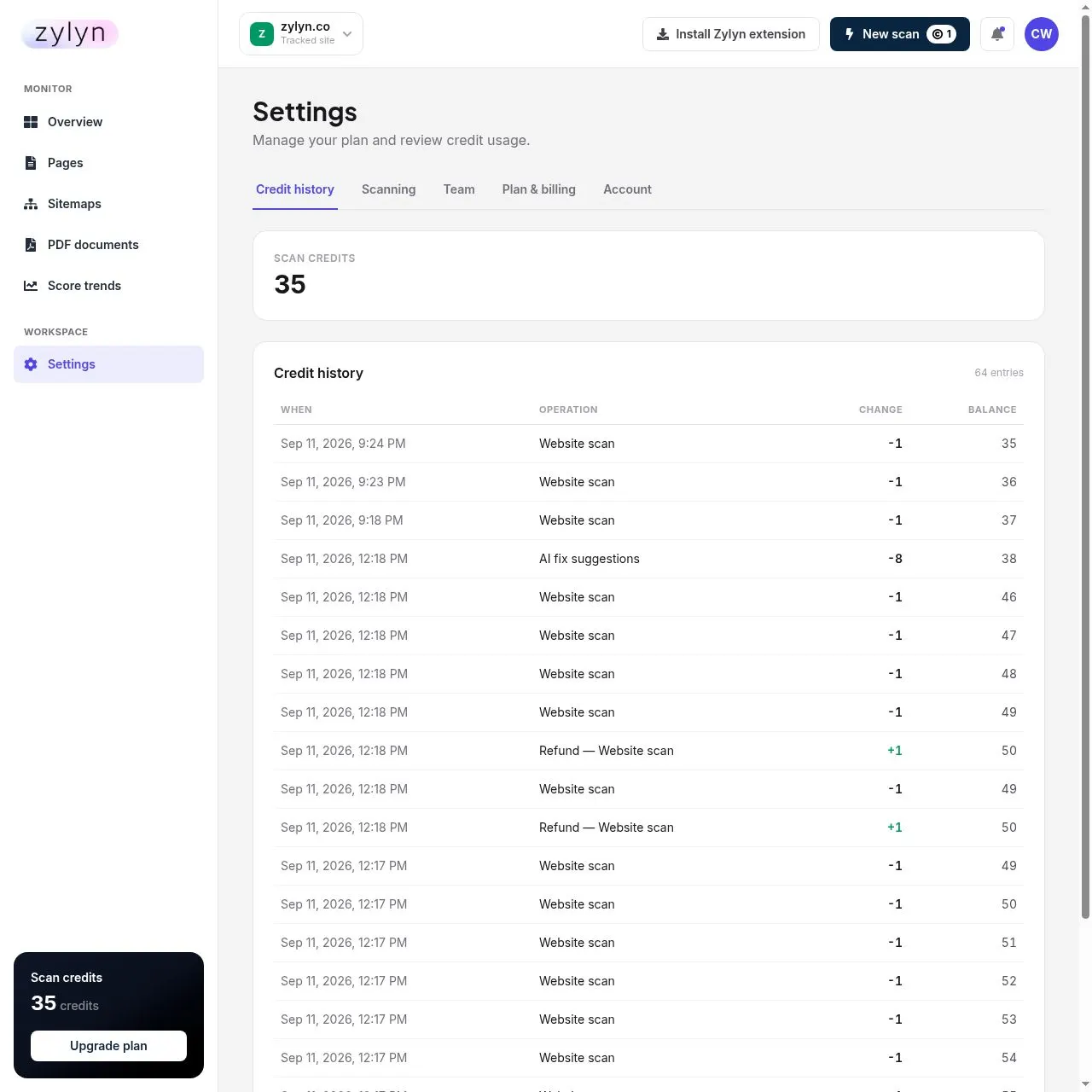
- Failed scans are refunded automatically. You'll see "Refund — Website scan" in credit history. You don't need to ask.
- Scans pause when credits run out rather than failing silently or overbilling you.
Credit history#
Settings → Credit history itemises every transaction with a running balance — operation, change, and resulting balance. If a number looks wrong, this is where you check.
Plans#
Individual#
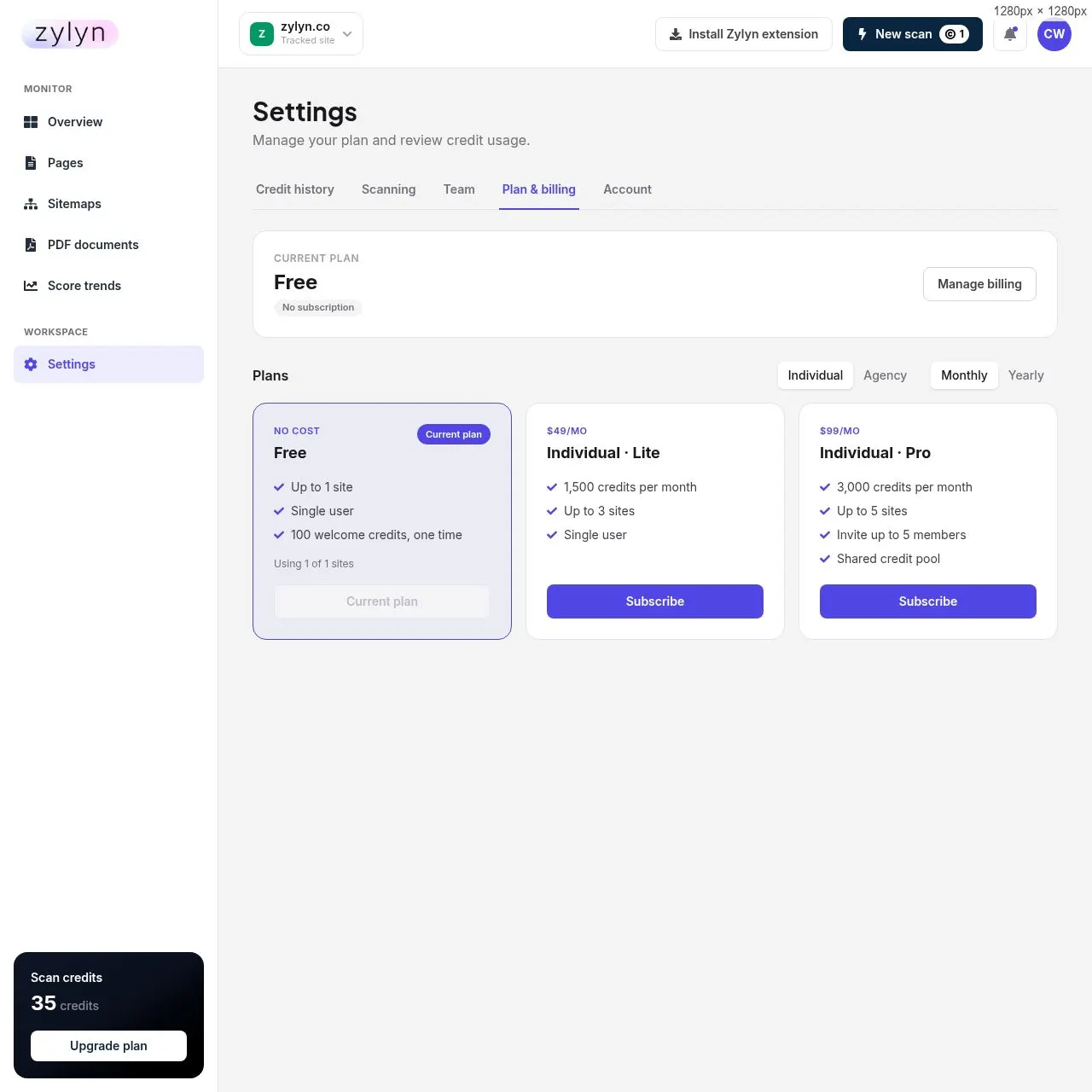
| Plan | Monthly | Yearly | Credits/mo | Sites | Members |
|---|---|---|---|---|---|
| Free | $0 | $0 | 100 one-time | 1 | 1 |
| Lite | $49 | $490 | 1,500 | 3 | 1 |
| Pro | $99 | $990 | 3,000 | 5 | 5 (shared pool) |
Agency#
All Agency plans include white-label branding and client accounts.
| Plan | Monthly | Yearly | Credits/mo | Sites | Members |
|---|---|---|---|---|---|
| Lite | $199 | $1,990 | 15,000 | 10 | 15 |
| Pro | $299 | $2,990 | 25,000 | 20 | 25 |
| Max | $599 | $5,990 | 60,000 | 40 | 50 |
Yearly billing is 10× the monthly price across every tier — two months free, about 17% off.
Larger estates: Starter, Professional and Enterprise#
The plans above are the self-serve tiers you can subscribe to from the billing screen. For multi-property estates, governed programmes and regulated organisations, Zylyn also sells three engagement tiers — Starter, Professional and Enterprise — which add manual audits, VPAT production, governance thresholds, role-based access and a named accessibility lead. Enterprise is priced per estate.
See enterprise and governance features. If your requirements include role-based permissions, policy thresholds or formal conformance documentation, that is the route — those are not switches on a self-serve plan.
Which plan do I need?#
Work it out from pages × scan frequency, not from the number of sites.
| Your situation | Credits/month | Plan |
|---|---|---|
| One 50-page site, weekly | ~215 | Lite ($49) |
| One 500-page site, weekly | ~2,150 | Pro ($99) |
| One 500-page site, daily | ~15,000 | Agency Lite ($199) |
| 700-page store, weekly | ~3,010 | Agency Lite — just over Pro's cap |
| 5,000-page site, weekly | ~21,500 | Agency Pro ($299) |
| 5,000-page site, daily | ~150,000 | Exceeds Agency Max — talk to Zylyn |
Two traps to avoid:
Daily scanning is expensive. It's offered at every tier, but on anything above ~2,000 pages it will exhaust even Agency Max. Weekly is the sensible default.
Site count can bite before credits do. If you manage twelve small client sites, you need Agency Lite for the site limit, even though twelve small sites use few credits.
Free plan limits worth knowing#
- One site, and no way to remove it once added. Choose your first site deliberately.
- Loose scans of a second domain are blocked by the same one-site limit.
- 100 credits is enough to add one site and scan ~90 pages — enough to baseline a small site, not a large one.
Managing your subscription#
Settings → Plan & billing → Manage billing. Subscribe, change plan, or update payment details.
Troubleshooting and FAQ
Blunt answers to the things that actually go wrong.
Scanning#
"You've reached your plan's limit of 1 site."#
You're on the free plan, which allows one tracked site — and the portal has no way to remove a site once added. This message also appears when you try a loose scan of a different domain, which is easy to mistake for a bug. You need a paid plan to scan a second domain. Note the message says "Upgrade to Agency", but Individual Lite at $49/mo already allows 3 sites — you don't need an Agency plan.
A scan failed.#
It was refunded automatically — check Settings → Credit history for a "Refund — Website scan" line. Usual causes: the page needs a login (use the extension), it's a JavaScript-only shell with no server-rendered content, or robots rules block it.
My scan is stuck / nothing is happening.#
Scans run in the background and a large site queues them. Navigate away and come back — progress shows as x / y on the dashboard. A 51-page site finishes in a couple of minutes.
New pages aren't being scanned.#
Discovery isn't continuous. Go to Sitemaps → Re-discover pages (2 credits) after launching new sections.
Contrast findings changed between scans and I didn't change anything.#
This is expected and worth understanding. Contrast checks depend on what actually rendered — viewport width, lazy-loaded content, and background images all affect the result. Contrast counts are the least reproducible metric in automated accessibility testing. Trust the trend, not a single run.
Scores#
Why isn't my score 100?#
Almost no site scores 100 on a first scan. Zylyn's own site scores 92. See what is a good score.
My score dropped and I didn't change anything.#
Check pages scanned on the dashboard. If more pages have been scanned since you last looked, the average now includes pages that were previously unmeasured. A score over 44 of 51 pages isn't comparable to one over 51 of 51.
My score says POOR but there seem to be only a couple of real problems.#
Both can be true. The score counts best-practice rules alongside genuine WCAG failures, and weights by how many elements are affected — so one best-practice rule firing on every div drags the number down hard. Count the WCAG-tagged findings to see your actual conformance gap. Don't set a remediation budget from the headline percentage.
Does a high score mean I'm ADA or WCAG compliant?#
No. It means the machine-checkable part is clean. Automated testing reaches roughly 20–40% of WCAG success criteria. Conformance you can defend needs manual testing with assistive technology.
Credits#
Where did my credits go?#
Settings → Credit history itemises every transaction with a running balance.
I ran out mid-scan.#
Scans pause automatically. Top up or upgrade and re-run — you aren't charged for what didn't run.
Why did an export cost a credit?#
Exports are metered at 1 credit each (PDF, CSV, email). Export once and share the file.
Do unused credits roll over?#
Not stated in the portal. Ask Zylyn before relying on it.
AI fix suggestions#
A suggestion contains [PLACEHOLDER].#
That's the Needs your input status — the fix is structurally complete but needs wording only you can supply, like what a progress bar measures. Replace it; don't ship the placeholder.
It says "Dev required" — is the suggestion wrong?#
No, it means no safe automatic patch exists. Typically the change touches a shared design token or component, so applying it affects more than the page you scanned. A developer should decide.
Can I apply suggestions automatically?#
No, and you shouldn't want to. They're AI-generated and require review. A wrong aria-label is worse than none — it misleads screen reader users confidently.
Reports and VPAT#
The VPAT button doesn't work.#
Correct — both Sitewide VPAT and Generate & view VPAT are labelled "Soon" and aren't implemented. VPATs and ACRs are produced as a service today. Use Request remediation help or contact Zylyn.
What's the difference between Violations and Incomplete?#
Violations are confirmed problems. Incomplete means the scanner couldn't decide and a human needs to look — it does not mean "fine". See the four result buckets.
What does "Partial coverage" mean?#
Some content — usually third-party iframes — couldn't be scanned. The report covers what Zylyn could reach.
Account and access#
Can I remove a site? Not through the portal. Contact Zylyn.
Can I invite a colleague? Not on Free or Individual Lite. Team seats start at Individual Pro.
Who can see my reports? Everyone on your account — there's no per-member visibility control — and your managing agency if you have one. This includes reports from pages scanned behind a login.
I never got a confirmation email. There isn't one. Registration signs you straight in.
I forgot my password. Use Forgot password? in the login dialog.
Getting help#
Request remediation help on any report contacts Zylyn's accessibility team. For account or billing issues, use the contact route on zylyn.co.
Accessibility glossary
The terms you'll meet in the portal, in plain English.
WCAG — Web Content Accessibility Guidelines. The international standard for accessible web content, published by the W3C. Version 2.2 is current. Almost every accessibility law in the world points at WCAG for its technical requirements.
Conformance levels: A, AA, AAA — three tiers of strictness. AA is the practical target and the level referenced by most laws and by Zylyn's scans. AAA is aspirational and rarely required wholesale.
Success criterion — a single numbered requirement within WCAG, like 1.4.3 Contrast (Minimum). When a finding is tagged WCAG AA · 1.4.3, that's the specific rule being failed.
POUR — the four WCAG principles: content must be Perceivable, Operable, Understandable and Robust.
Best practice — in Zylyn, a finding tagged WCAG BEST PRACTICE is a recommendation that improves accessibility but is not a WCAG failure. Worth fixing; doesn't count against conformance.
ADA — Americans with Disabilities Act (US, 1990). Civil rights law applied to websites through litigation rather than a fixed technical deadline. Courts generally treat WCAG AA as the benchmark.
Section 508 — US federal law requiring accessible technology in federal agencies and their suppliers. Drives the VPAT requirement in government procurement.
EAA — European Accessibility Act. Enforceable since 28 June 2025 for products and services placed on the EU market.
EN 301 549 — the European technical standard behind the EAA. Its digital core is WCAG.
AODA — Accessibility for Ontarians with Disabilities Act (Ontario, Canada).
Unruh Act — California civil rights law often used alongside the ADA in web accessibility claims.
VPAT / ACR — a Voluntary Product Accessibility Template is the blank form; a completed one is an Accessibility Conformance Report. Government and enterprise buyers often require one before evaluating a product. Not currently self-serve in Zylyn.
PDF/UA — the accessibility standard for PDF documents. See checking PDFs.
Screen reader — software that reads page content aloud for blind and low-vision users. The common ones are NVDA and JAWS on Windows and VoiceOver on Apple devices.
Assistive technology (AT) — the umbrella term: screen readers, magnifiers, switch devices, voice control, braille displays.
Alt text — the text alternative on an image, read aloud in place of the picture. Decorative images should have empty alt text so screen readers skip them; informative images need a real description.
Contrast ratio — the measured difference between text and background colour. WCAG AA requires 4.5:1 for normal text and 3:1 for large text. Zylyn reports the measured ratio and both colour values.
Landmark — a structural region of a page (main, nav, header, footer) that lets screen reader users jump straight to the part they want.
Skip link — a link at the very top of a page, often visible only on keyboard focus, that jumps past the navigation to the main content.
Focus order — the sequence in which elements receive focus as you press Tab. It should follow the visual reading order.
Focus indicator — the visible outline showing which element is focused. Removing it (a common CSS "tidy-up") makes a site unusable by keyboard.
ARIA — Accessible Rich Internet Applications: extra HTML attributes that describe custom components to assistive technology. Powerful and easy to get wrong — incorrect ARIA is worse than none.
Accessible name — the label assistive technology announces for a control. A button containing only an icon has no accessible name unless you add one.
Sources
This guide was written from direct observation of the live Zylyn portal on 2026-09-12, signed in to a real account. Nothing here is taken from marketing copy or a roadmap.
Screens verified#
| Screen | Route | Screenshot |
|---|---|---|
| Login / Register dialog | zylyn.co | view |
| Dashboard / Overview | /portal | view |
| Pages list | /portal/pages | view |
| Score trends | /portal/trends | view |
| PDF documents | /portal/pdf | view |
| Sitemaps | /portal/sitemaps | view |
| Settings — Credit history | /portal/settings | view |
| Settings — Scanning | /portal/settings | view |
| Settings — Plan & billing | /portal/settings#billing | view |
| Scan report (with findings) | /portal/scans/128440 | view |
| Run new scan dialog | — | view |
| Add a site dialog | — | view |
Also verified without a screenshot: Loose scans (/portal/loose), Settings — Team (gated behind a paid plan), Settings — Account.